
My Lightroom Folder Structure Is Just Year > Month


Most Lightroom folder structures are overengineered. They try to organize images by project, trip, client, genre, mood, or whatever naming system feels logical at the time. That might work for a while, but that type of subjective naming becomes unreliable as your archive grows. So I keep my Lightroom folder structure as boring as possible.
My files are organized by Year > Month. That’s it. Moments in time are facts. Everything else is subjective. A photo was taken on a specific day, in a specific month, in a specific year. That remains true forever.
Whether that same photo belongs to a project, a client, a trip, a portfolio, or some future body of work can change over time. That meaning belongs in Lightroom metadata, not in the folder structure itself. The goal is not to make your archive look impressive, but to create a structure that remains readable, searchable, and usable for decades.
TL;DR
- Use a single
Year > Monthfolder structure for your Lightroom photo archive. - Keep the physical folder structure boring, chronological, and easy to understand.
- Do not organize RAW files by project, client, trip, genre, or mood.
- Use Lightroom metadata, collections, ratings, keywords, and Smart Collections for meaning and retrieval.
- Make sure Finder, your NAS, and Lightroom show the same folder structure.
- Move files inside Lightroom after import, not manually in Finder.
- Use unique camera filenames and continuous numbering to avoid conflicts.
The Problem With Most Lightroom Folder Structures
Many photographers organize their work using names that feel logical at the time: Travel, Street Photography, Personal, Fun trip with the boys, Client Work, Portfolio. That seems intuitive at first, but it introduces interpretation into the filesystem. And interpretation is exactly where folder structures start to fail.
The problem is that your interpretation changes over time. You change, your work changes, and the world around your work changes too. What feels obvious during import can become vague a year later. A folder name that makes perfect sense today might not make sense to you in the future, let alone to someone else opening the archive for the first time.
A folder structure should therefore not need interpretation before it becomes useful. It should be logical to anybody seeing it, wether that's you today, you in the future, or anybody else at all times. I’ll happily sacrifice some of the 'artistic' naming if it means the archive still makes sense ten years from now.
A good folder structure should not depend on your current mood, project logic, naming taste, or interpretation of the work. It should remain readable even when all of those things change.
My Actual Lightroom Folder Structure
By "Lightroom folder structure," I mean the physical folder structure Lightroom points to, not the Collections or Smart Collections I use inside Lightroom. It took a few years of iterating, but I eventually arrived at a structure that is simple enough to keep using indefinitely. It does not matter how many photos I take, how many different kinds of shoots I do, how many clients I have, or how many places I visit. The core folder hierarchy stays the same: Year > Month > Photo RAW > File
It looks like this:
photo
└── photo
    ├── 2024
    ├── 2025
    └── 2026
        ├── 01 January
        ├── 02 February
        ├── 03 March
        ├── 04 April
        └── 05 May
            └── Photo RAW
                ├── XPRO9981.RAF
                ├── XPRO9981.xmp
                ├── XPRO9982.RAF
                └── XPRO9982.xmp
I number the months so they always sort chronologically in both Finder and Lightroom: 01 January, 02 February, 03 March, and so on.
The Photo RAW folder is partly a remnant from when I still exported archival files alongside my RAW files. I no longer do that because it became redundant, but I kept the folder because it makes the structure readable. Anyone opening it can immediately see that this is where the RAW files live.
Most of the time, this folder only contains RAW files and sidecar files, but it also gives me a little room for the occasional supporting item when needed. The system is not designed to be expressive. It is designed to be obvious. A boring system is a good system

Why I Organize Photos by Date Instead of Project
By now, the reason is probably clear: moments in time are facts. Everything else is subjective. Any meaning you give an image depends on interpretation. That interpretation might make perfect sense today, but it can change in a week, a year, or a decade. If you dedicate a RAW file to a project, trip, client, or shoot folder, you are locking that file into one temporary version of what it means. That is too fragile for long-term archival work.
Images are moments frozen in time, so the only intrinsic truth I use for storage is when the image was made. It simplifies the whole decision to: "When was it shot? Good. That is the folder. End." I like the rigidity of that. I like the purposeful un-sexiness of it. Because the boring structure is what allows the more interesting layer to exist on top.
For example: you shoot an image for Client X. At the time, the only purpose of that image is to be delivered to that client. A few years later, you start Project Y, and that same image suddenly fits the project perfectly.
If the RAW file lives in a client folder, the archive has already made a decision for you. But if the RAW file lives in the month it was shot, nothing has to move. The file stays where it belongs, and the meaning can change freely inside Lightroom. You simply add another tag, collection, title, or piece of metadata. The file remains stable. The interpretation remains flexible. If a file can belong to more than one story, the filesystem should not force it into one.
Why Month Is the Right Level of Granularity
Think about it: how many years does a human life contain? And how many of those years are you actively taking photos? At most, you’re probably looking at something like 60 to 80 years of work. That is a lot, but it is still possible to oversee. A list of 80 consecutive year folders is manageable. That is why the top of my structure starts at the year level.
Below that, the question becomes: how much granularity does the archive actually need? I believe folder granularity should follow the content, not the other way around. Don’t create a folder just to put one file inside it. Wait until there is enough material for the folder to earn its existence.
For photography, organizing on a monthly level is the right middle ground for me. A year-only structure gets too broad quickly because a single year folder becomes too large and messy. Day or week folders usually go too far in the other direction. Unless you shoot an extreme amount of work, they create extra management and introduce confusion instead of removing it. If you truly shoot at extreme volume, a week layer might make sense. But most photographers do not realistically have that problem.
The monthly level or granularity gives enough structure without turning the archive into folder management. It keeps the files easy to scan, easy to find, and easy to maintain. Month is the smallest unit I need and the largest unit that still stays manageable.
| Structure | Problem |
|---|---|
| Year only | Too broad over time |
| Year > Month | Simple and manageable |
| Year > Month > Day | Usually too granular |
| Year > Month > Week | Useful only for very high-volume workflows |
| Year > Month > Week > Day | Don't even get me started... |
How My NAS, Finder, and Lightroom Stay in Sync
My NAS stores the media files, it's where all the files physically live. Finder shows the filesystem. Lightroom mirrors that same structure and makes the files usable.
At the highest useful level, my archive is divided into Photo and Video. Both follow the same Year > Month structure. Folder-wise and file-wise, there should be no mystery: the structure on the NAS and the structure Lightroom sees should match.
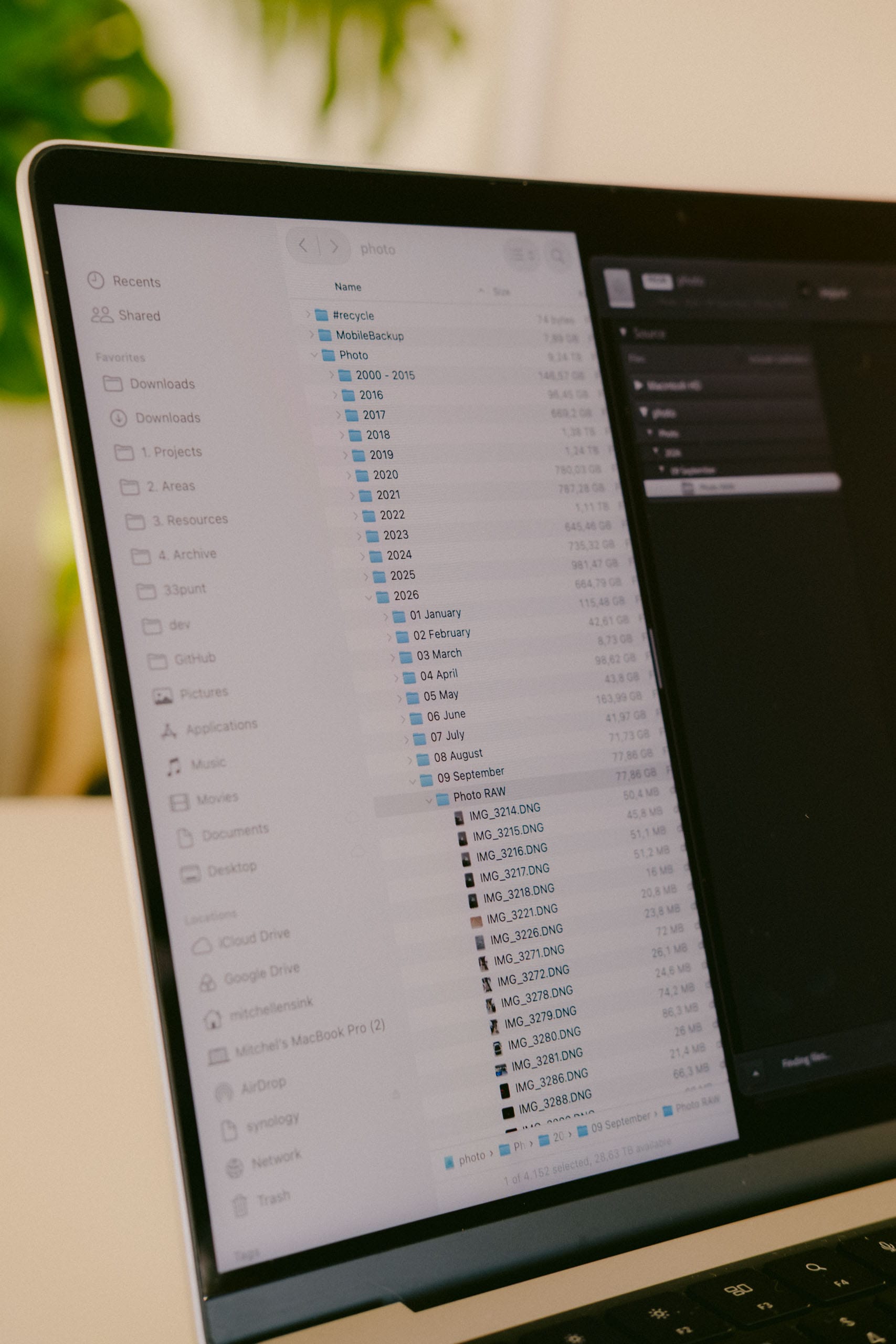

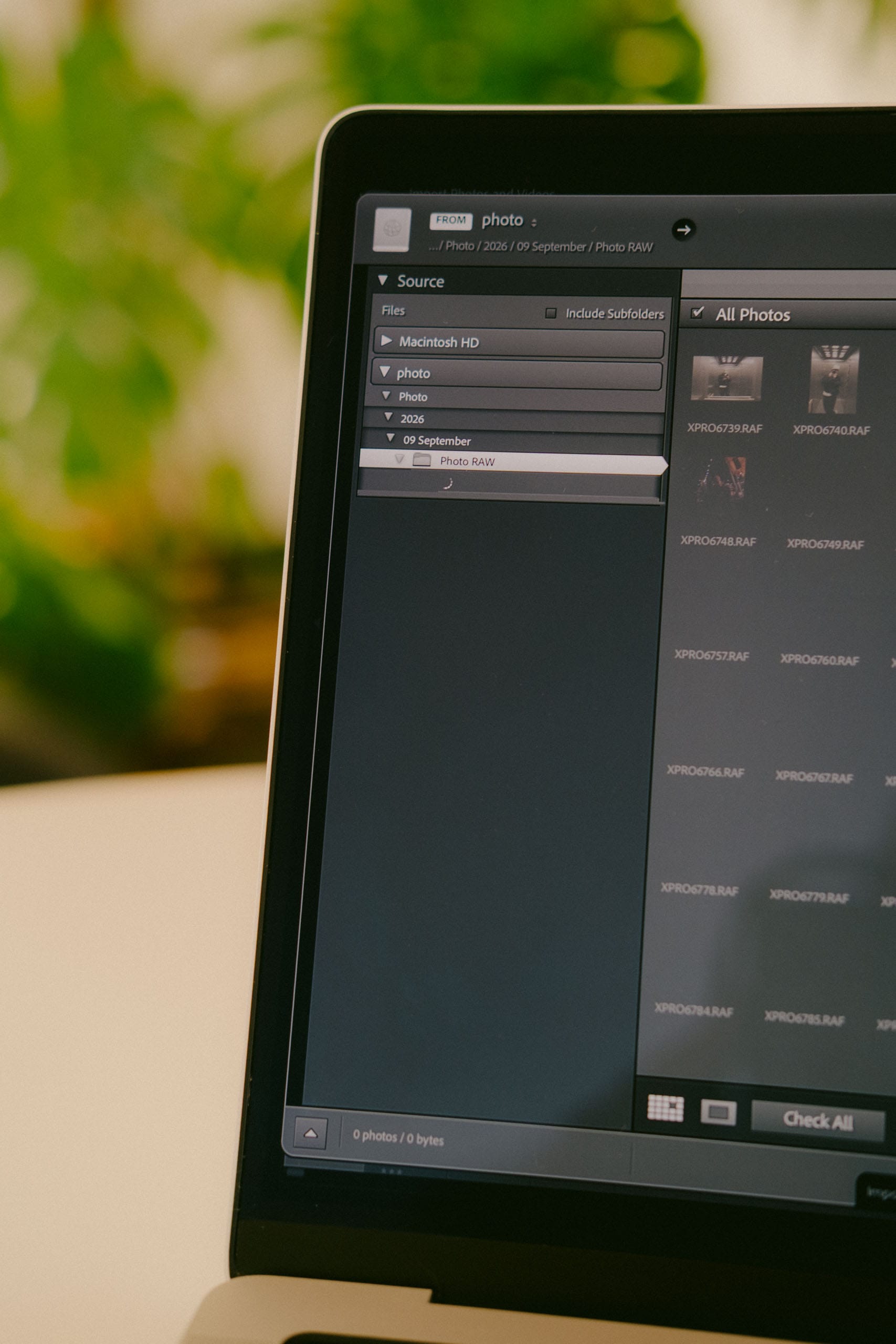
I copy files into the correct month folder first, then add them to Lightroom without moving them.
My import workflow is purposefully simple. I copy files from the SD card into the correct month folder in Finder first. Then I open Lightroom and use Import to bring those files into the catalog without moving them. Year > Month Smart Collections auto-categorize the files on import. But Smart Collections don't sync to Lightroom Mobile. I therefore add the files to a manually kept Year > Month collections on import. These sync to Lightroom Mobile.
Lightroom’s import dialog can do the copying of the files too, but I prefer doing the file transfer in Finder because it keeps the action more transparent. This way, there are fewer actors involved. If something fails, it is clearer where it happened.
The important rule is this: Before import, Finder is fine. After import, Lightroom should be in charge.
Once Lightroom knows about a file, I only move it inside Lightroom. Moving a folder or file inside Lightroom also moves it on the NAS, but keeps the catalog linked to the new location. Moving files manually in Finder after import can break Lightroom’s connection and create missing files.
You can relink those files, but it becomes finicky fast. It's better to avoid the problem entirely.
Why Camera File Naming Still Matters
The folder structure described so far only works if the filenames do not fight it.
Because all files from the same month live in the same month folder, filenames need to stay unique. This is especially true if you import images multiple times per month, which you probably should. Otherwise, duplicate filenames can quickly become chronologically confusing and increase the risk of import conflicts or accidentally overwriting files.
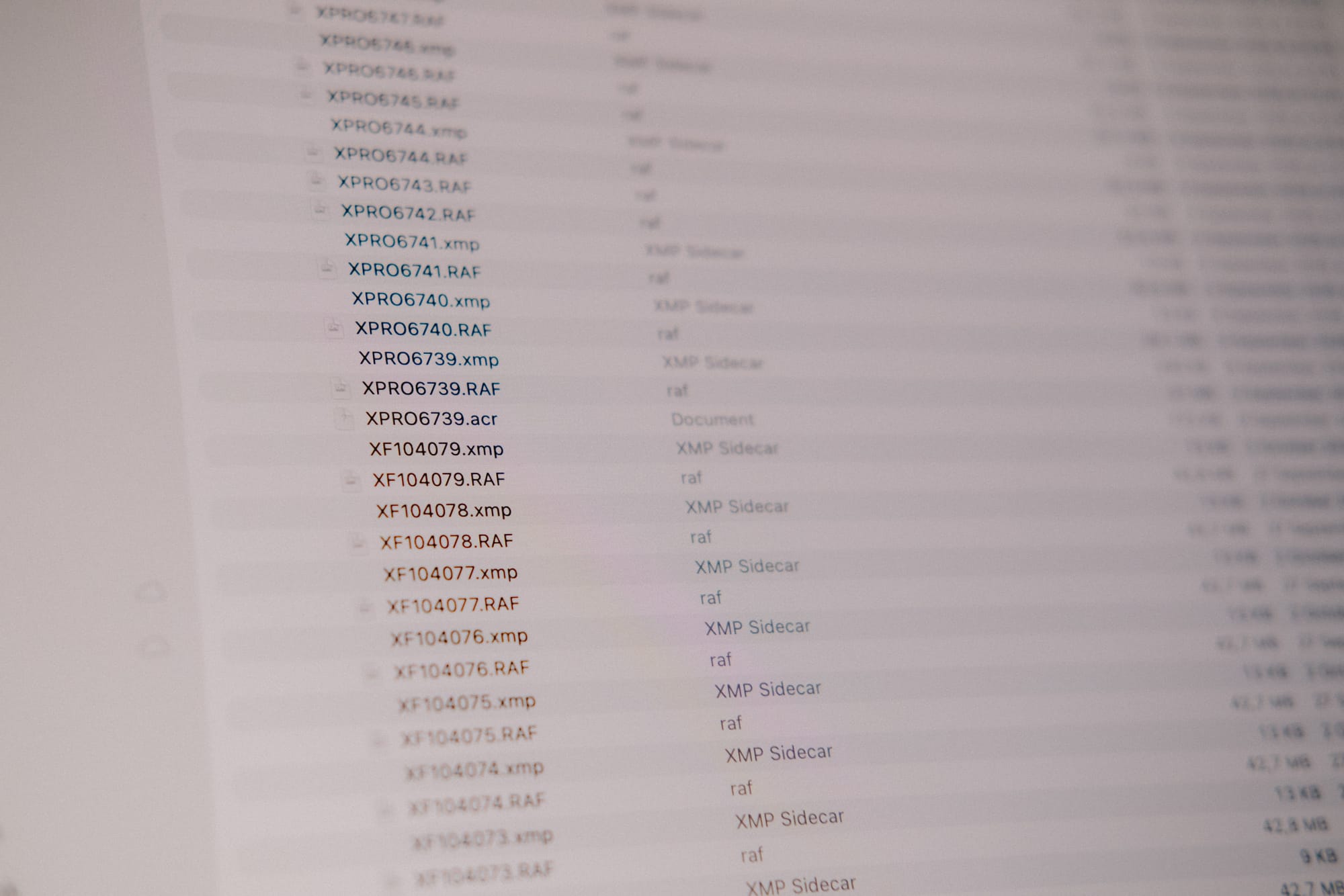
I therefore keep the original camera filenames, but assign each camera its own in-camera prefix: XPRO, X100, XF10, and so on. That makes it clear which camera created the file, but more importantly, it prevents conflicts when files from multiple cameras end up in the same folder.
The second important setting is continuous numbering. The camera should keep counting from 0001 to 9999 instead of restarting at 0001 every time you format a card. If numbering resets after every format, duplicate filenames appear very quickly. Continuous numbering is not a detail. It prevents the system from collapsing during import.
The only realistic conflict in my setup would be shooting more than 9999 files with the same camera in the same month. That almost never happens for me. If you regularly hit that number, you probably need a more advanced naming strategy or a more granular folder structure.
What Belongs in Metadata Instead of Folders
The folder structure should only answer one question: when was it shot? Everything else belongs in Lightroom metadata.
That means projects, clients, places, people, keeper status, ratings, keywords, GPS data, and collections should not be forced into the filesystem itself. Those things describe what an image means, how it might be used, or how it relates to other images. That meaning can change over time.
A file can belong to a client, a project, a place, a portfolio, and a future body of work without needing to move or duplicate the RAW file. That is what Lightroom is good at. It allows one stable file to carry multiple layers of meaning. The filesystem should stay neutral. Lightroom is where you give it the interpretation.
| Use folders for | Use Lightroom metadata for |
|---|---|
| Year | Project |
| Month | Client |
| RAW file location | Place |
| Stable chronology | Person |
| Filesystem readability | Keeper status |
| Long-term structure | Keywords, titles, ratings, GPS |
This keeps the archive readable outside Lightroom too. Even if Lightroom disappeared tomorrow, the files would still sit in a clean chronological structure.
Lightroom Folder Structure Mistakes to Avoid
Most Lightroom folder structure mistakes come from adding too much complexity too early. You will forget things and make mistakes, so build a system that accounts for that.
Common mistakes to avoid:
- Too many nested folders
More folders mean more decisions. More decisions mean more inconsistency. Use as few folders as the work allows. - Temporary project names
Project names change. One image can belong to multiple projects, clients, places, or bodies of work. Filesystem folders are too rigid for meaning that keeps evolving. - Mixing RAWs and exports chaotically
RAW files are source material. Exports are outputs for specific uses. I keep exports in dedicated project folders instead of mixing them into the source archive. - Changing the structure every year
Reinventing the system creates debt. You end up with years of conflicting folder logic, and past behavior leaves remnants that are hard to clean up later. - Multiple drives without one master structure
This is the quickest mistake to bite you. External drives become hard to track, and eventually it becomes unclear where the real archive lives. - Assuming Lightroom fixes bad file habits
Lightroom is powerful, but it should sit on top of good file habits, not compensate for bad ones. The filesystem foundation still matters.
Closing
You do not need a clever folder structure. You need one that holds up over time. The work itself can be complex. The folder structure should not be. If you photograph from your 25th until your 85th, that is 60 years of work and therefore 60 Year folders. Inside each year, there are only 12 month folders. That is oversee-able. That is manageable. That is enough.
A lifetime of creative work does not need a complicated folder structure. But it does need one you can trust.
FAQ
These are the most common questions that come up when people start thinking seriously about their Lightroom folder structure. The short version is simple: keep the filesystem boring, stable, and chronological. Let Lightroom handle the interpretation.
What is the best Lightroom folder structure?
For most photographers, the best Lightroom folder structure is Year > Month. It is stable, scalable, and easy to understand years later. Dates do not change, while projects, clients, trips, genres, and interpretations often do. Use folders for the physical file structure, and use Lightroom metadata, ratings, keywords, and collections for everything subjective.
The best folder structure is the one that still makes sense decades later.
Should I organize Lightroom photos by date or project?
Organize source files by date, not by project. A project can change, split, disappear, or gain new meaning later. A photo’s capture date does not change.
Project meaning belongs in Lightroom metadata, collections, Smart Collections, titles, keywords, or ratings. The RAW file itself should stay in the folder that reflects when it was shot.
Use date for storage and metadata for meaning.
Should I use folders or collections in Lightroom?
Use both, but for different purposes. Folders show where files physically live on your drive, NAS, or filesystem. Collections show how you want to group, use, or revisit those images inside Lightroom. Folders should stay stable. Collections can be flexible, temporary, project-based, or automated.
Folders store files. Collections create relationships.
Should Lightroom folders match Finder folders?
Yes. Lightroom’s folder panel should mirror the actual filesystem as closely as possible. If Finder and Lightroom show the same structure, the archive becomes easier to understand, easier to maintain, and harder to break.
The physical structure should not be mysterious. Folder-wise and file-wise, Lightroom and Finder should tell the same story. If Finder and Lightroom tell two different stories, the system becomes harder to trust.
Should I move Lightroom folders in Finder?
Not after Lightroom knows about the files. Before import, moving files in Finder is fine. After import, move folders and files inside Lightroom. That way Lightroom also updates the file location in the catalog and keeps everything linked correctly.
If you move files manually in Finder after import, Lightroom can lose track of them and show missing-file errors. Before import, Finder is fine. After import, move files in Lightroom.
Should I create folders by year, month, or day?
For most photographers, Year > Month is the best middle ground. Year-only folders become too broad over time, while day folders usually create unnecessary folder management. Month folders provide enough structure without making the archive overly granular.
If you shoot extreme volume, a week or day layer might make sense. Most photographers do not realistically need it. Month gives structure without turning the archive into folder management.
Should RAW files and exports live in the same folder?
Usually, no. RAW files are source material. Exports are outputs created for specific uses.
I keep RAW files in the main chronological archive and keep exports in dedicated project folders. That keeps the source archive clean while allowing exported files to live where they are actually used.
RAW files belong in the archive. Exports belong where they are used.
Can Lightroom organize photos automatically?
Yes, but only if the underlying system is clean.
Lightroom can automate a lot through metadata, ratings, keywords, dates, collections, and Smart Collections. But automation works best when the folder structure is already simple and reliable. If the filesystem is chaotic, Lightroom has to compensate for bad inputs.
Automation works best when the folder structure is already simple.
Catalog
System map
Just you, me, and some occasional notes from the field. No spam.
Join the conversation